> For the complete documentation index, see [llms.txt](https://docs.tronsave.io/llms.txt). Markdown versions of documentation pages are available by appending `.md` to page URLs; this page is available as [Markdown](https://docs.tronsave.io/developers/authentication.md).

# Authentication

Every TronSave API request must be authenticated. There are two methods: an **API Key** tied to a TronSave **Internal Account**, or a **Signed Transaction,** where you pay from your own wallet per purchase. This page explains both and shows how to obtain an API Key on the website or via Telegram.

## Internal Account and API Key

A TronSave **Internal Account** is a TronSave-managed balance. You deposit TRX into it once, and the API spends from that balance automatically when you place orders. It also tracks your transaction history and lets you manage assets within the system.

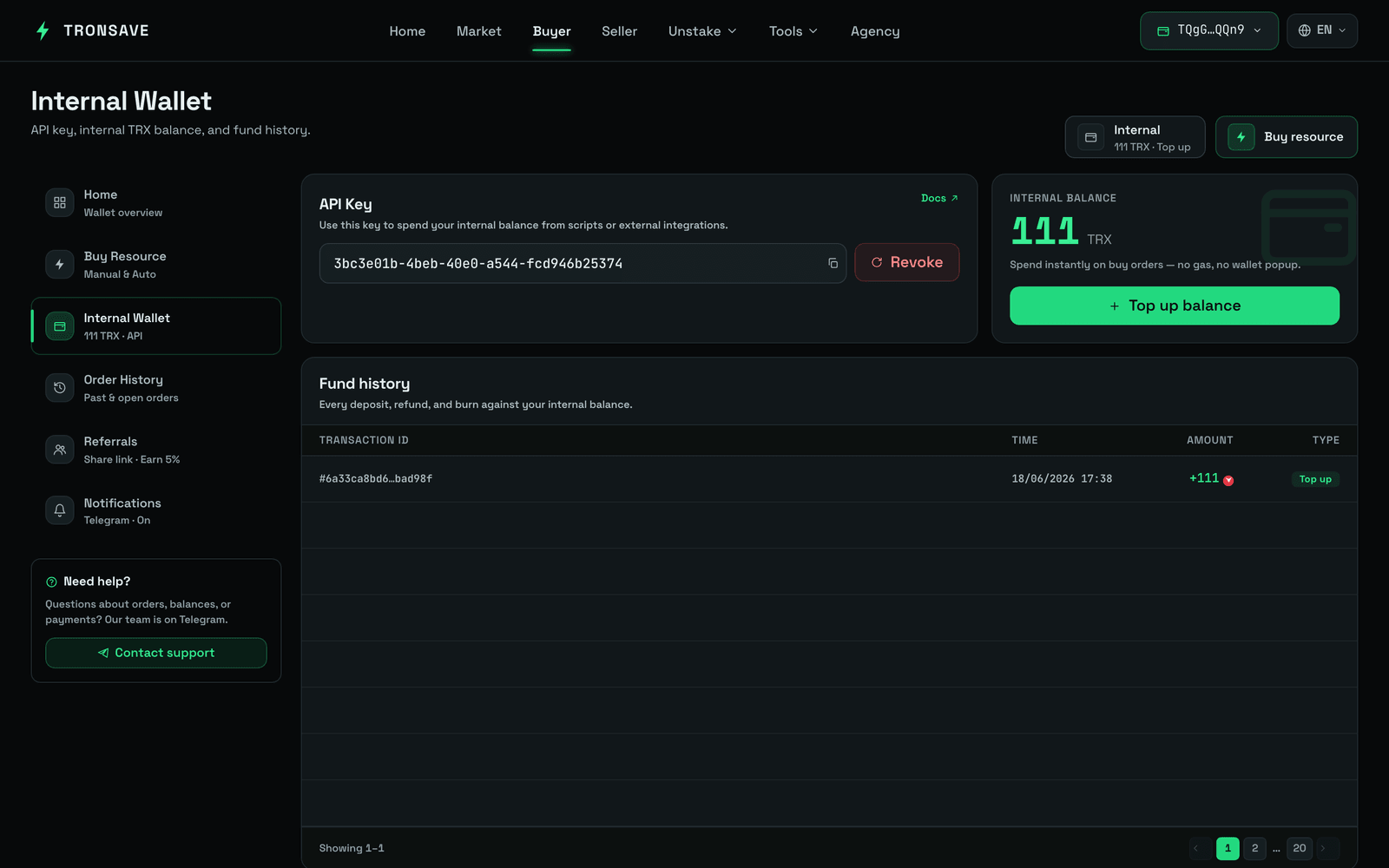
Each Internal Account is assigned a unique **API Key** — a secret identifier issued by TronSave and linked to that account. The API Key lets you or a third-party application (a bot, an automated service) send commands to the Internal Account without logging into the website or app. Every request — checking balances, creating orders, extending orders — is tied to the Internal Account through the API Key.

In short:

* The **Internal Account** is where your assets are stored and managed.
* The **API Key** is the tool that grants secure, automated access to that account.

{% hint style="warning" %}
Your API Key controls spending from your Internal Account. Treat it like a password: never commit it to source control, never expose it in client-side code, and never share it. Anyone with your key can place orders that spend your deposited TRX.
{% endhint %}

## The two authentication methods

<table><thead><tr><th width="142"></th><th width="296">API Key</th><th>Signed Transaction</th></tr></thead><tbody><tr><td><strong>How it works</strong></td><td>Requests carry your API Key; orders are paid from your Internal Account balance</td><td>You sign a TRX payment from your own wallet for each purchase</td></tr><tr><td><strong>Custody</strong></td><td>Funds held in a TronSave-managed Internal Account</td><td>Full self-custody — you keep your funds</td></tr><tr><td><strong>Setup</strong></td><td>Get an API Key, deposit TRX once</td><td>No deposit; sign per transaction</td></tr><tr><td><strong>Best for</strong></td><td>Bots and automated services making frequent calls</td><td>Users who want to retain custody and pay as they go</td></tr><tr><td><strong>Sent as</strong></td><td><code>apikey</code> request header</td><td>A signed transaction in the request body</td></tr></tbody></table>

{% hint style="info" %}
With the API Key method, you send the key in the `apikey` header:

```bash
curl -X POST https://api.tronsave.io/v2/buy-resource \
  -H "apikey: YOUR_API_KEY" -H "Content-Type: application/json" \
  -d '{ ... }'
```

{% endhint %}

For the terminology used here, see the [Glossary](/concepts/glossary.md).

## Get an API Key

You can obtain your API Key directly from the **website** or via **Telegram**.

{% tabs %}
{% tab title="On the website" %}
**Step 1 — Get the deposit address and API Key**

1. Go to [tronsave.io](https://tronsave.io/market).
2. Click the **Connect** button.
3. Choose a wallet option and sign in to connect.
4. After connecting, select **Account info**.
5. Click the **Login TRONSAVE** button and **Sign**.
6. Your API Key and deposit address are displayed.

{% hint style="info" %}
**Note:** If you're using the **Nile testnet**, use this URL instead: [`https://testnet.tronsave.io/`](https://testnet.tronsave.io/)
{% endhint %}

<figure><img src="/files/VZ3ycqBzzbjaD0ywXBLg" alt="Buyer Internal Wallet"><figcaption></figcaption></figure>

**Step 2 — Deposit by transferring TRX**

1. Click the **Top up** button to get the deposit address.
2. Transfer TRX to this address.
3. **Sign** to confirm the transaction.
4. The new balance auto-updates in about 3 seconds.

{% hint style="info" %}

* The minimum deposit is **10 TRX**.
* Your first deposit requires an additional fee of approximately **1 TRX** to activate the new address.
* You can make **2 deposit transactions** with TRX per day without fees. After that, each additional deposit incurs a **0.3 TRX** fee.
  {% endhint %}
  {% endtab %}

{% tab title="On Telegram" %}

1. Open the TronSave Telegram bot ([@BuyEnergyTronsave\_bot](https://t.me/BuyEnergyTronsave_bot)) and go to **User Info**.
2. Select the **API key** button.
3. Click on the API Key to copy it.

<figure><img src="https://1055070949-files.gitbook.io/~/files/v0/b/gitbook-x-prod.appspot.com/o/spaces%2Fh0rlDWTk05Qu3lvB5Gve%2Fuploads%2Ft56PrV7m0pvsygYBCi0J%2Fimage.png?alt=media&#x26;token=219646b8-49cc-4253-9771-0994a11face6" alt=""><figcaption></figcaption></figure>
{% endtab %}
{% endtabs %}

## Revoking and rotating your key

If you need to change your API Key, select **Revoke** to generate a new one. This works the same way on the website and on Telegram: confirm the action to create a new key, or cancel to keep the current one.

{% hint style="warning" %}
We do not recommend changing the API Key. Revoking invalidates the old key — any bot or service still using it will stop working. Only revoke if necessary (for example, if the key may have been exposed).
{% endhint %}

## Next steps

* [Developer Quickstart](/developers/quickstart.md) — get a key, deposit, and place your first order
* [API Reference](/developers/api-reference.md) — full endpoint list
* [Glossary](/concepts/glossary.md) · [Order Types](/concepts/order-types.md)


---

# Agent Instructions
This documentation is published with GitBook. GitBook is the documentation platform designed so that both humans and AI agents can read, navigate, and reason over technical content effectively. Learn more at gitbook.com.

## Querying This Documentation
If you need additional information that is not directly available in this page, you can query the documentation dynamically by asking a question.

Perform an HTTP GET request on the current page URL with the `ask` query parameter:

```
GET https://docs.tronsave.io/developers/authentication.md?ask=<question>
```

The question should be specific, self-contained, and written in natural language.
The response will contain a direct answer to the question and relevant excerpts and sources from the documentation.

Use this mechanism when the answer is not explicitly present in the current page, you need clarification or additional context, or you want to retrieve related documentation sections.
