> For the complete documentation index, see [llms.txt](https://docs.tronsave.io/llms.txt). Markdown versions of documentation pages are available by appending `.md` to page URLs; this page is available as [Markdown](https://docs.tronsave.io/guides/buy/on-the-website/normal-order.md).

# Normal Order

A Normal Order is the standard purchase on TronSave: you specify the amount, price, and duration, and the order matches against the current market supply right away. See [Order Types](/concepts/order-types.md) for how it compares to Pending, Smart, and other flows.

## Create an order

1. Open [tronsave.io/market](https://tronsave.io/market).
2. Connect your wallet (e.g., TronLink).
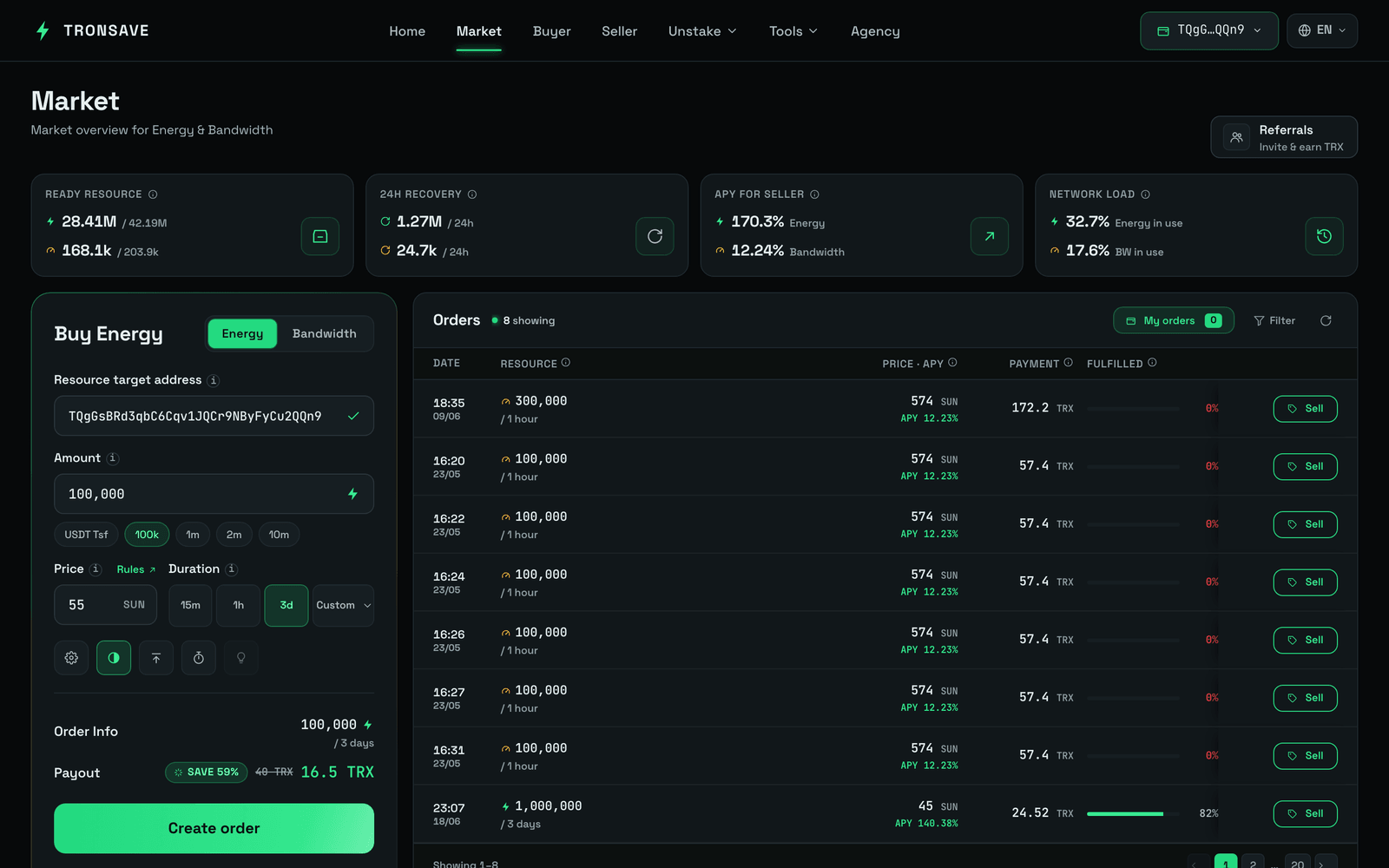
3. Enter the **Amount** of Energy/Bandwidth to buy, the **Price**, and the **Duration**. You can optionally set a custom resource target address. Fill in the form, then click **Create order**.

<figure><img src="/files/QS1vPcZhwQw1vrxn2YXB" alt="Market Create Order"><figcaption></figcaption></figure>

{% hint style="info" %}
Click the **Price** field to open the **Order Book** pop-up. From there, you can check the available resources at different price levels and choose the most suitable price and quantity for your rental.
{% endhint %}

<figure><img src="/files/qM6s4Voksx5yO3xifA3O" alt="Market Order Book"><figcaption></figcaption></figure>

## Advanced settings

Open the **Settings** (⚙️) button to configure:

<table><thead><tr><th width="240">Setting</th><th>Description</th></tr></thead><tbody><tr><td><code>Minimum delegate</code> (Energy/Bandwidth)</td><td>The minimum amount of Energy/Bandwidth from a single provider that can be delegated to you. When set, the system matches your order only with providers whose available Energy/Bandwidth is equal to or greater than this value.</td></tr><tr><td><code>Allow partial fill</code></td><td>If checked, the order may be filled partially. If unchecked, the order will not be filled unless a single address can complete it in one transaction.</td></tr><tr><td><code>Immediate buy</code></td><td>If checked, the order must fill immediately. If the system is not ready to match it, the order is not created.</td></tr><tr><td><code>Priority payment</code></td><td>Preferred payment method. Default: always ask to confirm.</td></tr></tbody></table>

<figure><img src="/files/VRFr5h8OoiYShUl4UDN6" alt=""><figcaption></figcaption></figure>

<figure><img src="/files/JX8REQWCQumL6LiQG851" alt=""><figcaption></figcaption></figure>

Once placed, the order appears on the **Orders** tab. If sufficient pool resource is available, it is filled automatically.

<figure><img src="/files/zO2w9Xu985y4b8wnypS6" alt="Order History"><figcaption></figcaption></figure>

## Update the target address

You can change an order's target (receiving) address if the order is **not fully matched** and **at least 1 hour has passed since its** creation.

1. Open the **My Orders** tab and click into **Order Detail**.

<figure><img src="/files/jzuqF29zoauXHM3peDXY" alt=""><figcaption></figcaption></figure>

<figure><img src="/files/S1bSQVjdJiYHaP8jwZBs" alt=""><figcaption></figcaption></figure>

2. Click **Edit** and input the new address.

<figure><img src="/files/cHnQmPouR64P8dnlsJB7" alt=""><figcaption></figcaption></figure>

3. Click **Confirm**.

<figure><img src="/files/RBuL7SQ8R7mSoBeO40uY" alt=""><figcaption></figcaption></figure>

## Update the price

1. Click the **Edit** button.

<figure><img src="/files/yySPhu0w3rQ7sSC7rZI4" alt=""><figcaption></figcaption></figure>

2. Input the new price and click **Confirm**.

<figure><img src="/files/VPuTfRPzBggSs3QBijkh" alt=""><figcaption></figcaption></figure>

## Cancel an order

You can cancel an order if it is **not matched within 5 minutes** of creation. If the order is **partially matched**, it can only be canceled **1 hour after it was created**.

The cancellation fee is **5 TRX**

1. Click the **Cancel** button on your order.

<figure><img src="/files/Masftc1IHFrlELEb7Wgw" alt=""><figcaption></figcaption></figure>

2. Click **Yes, I'm sure** to confirm the cancellation.

<figure><img src="/files/nn4BPLAeaaVj8LOqXKrc" alt=""><figcaption></figcaption></figure>

## Next steps

* [Order Types](/concepts/order-types.md) — Normal vs Pending, Smart, ZapBuy, and more
* [Pricing & APY](/concepts/pricing-and-apy.md)
* [Energy & Bandwidth](/concepts/energy-and-bandwidth.md)


---

# Agent Instructions
This documentation is published with GitBook. GitBook is the documentation platform designed so that both humans and AI agents can read, navigate, and reason over technical content effectively. Learn more at gitbook.com.

## Querying This Documentation
If you need additional information that is not directly available in this page, you can query the documentation dynamically by asking a question.

Perform an HTTP GET request on the current page URL with the `ask` query parameter, and the optional `goal` query parameter:

```
GET https://docs.tronsave.io/guides/buy/on-the-website/normal-order.md?ask=<question>&goal=<endgoal>
```

`ask` is the immediate question: it should be specific, self-contained, and written in natural language.
`goal` is optional and describes the broader end goal you are ultimately trying to accomplish on behalf of the user. GitBook uses it to tailor the answer towards what is most useful for that goal.

The response will contain a direct answer to the question and relevant excerpts and sources from the documentation.

Use this mechanism when the answer is not explicitly present in the current page, you need clarification or additional context, or you want to retrieve related documentation sections.