> For the complete documentation index, see [llms.txt](https://docs.tronsave.io/llms.txt). Markdown versions of documentation pages are available by appending `.md` to page URLs; this page is available as [Markdown](https://docs.tronsave.io/guides/buy/on-the-website/pending-order.md).
# Pending Order
Create an order on the website and pay in TRX without connecting a wallet.
A **Pending Order** lets you create a buy order on the website **without connecting a wallet**. You fill in the order details, the system generates a one-time TRX payment address, and the order is fulfilled once your payment is verified.
This is useful when you can't or don't want to connect a wallet (e.g. TronLink) directly — you simply send the exact amount of TRX from any wallet.
{% hint style="info" %}
Want to learn how Pending Orders compare to the other buying methods (Normal, Smart, ZapBuy, Auto Buy)? See [Order Types](/concepts/order-types.md).
{% endhint %}
## Step 1 — Open the market page
Go to [tronsave.io/market](https://tronsave.io/market).
## Step 2 — Fill in the order details
* **Resource**: choose **Energy** or **Bandwidth**.
* **Receiver Address**: the TRON address where the resource will be delivered.
* **Amount**: the amount of Energy or Bandwidth to buy (e.g. `500,000`).
* **Duration**: how long you want to rent — from 15 minutes to 30 days.
## Step 3 — Confirm the order
Once everything is filled in, click **Create order**. You don't need to connect your wallet.
## Step 4 — Get payment instructions
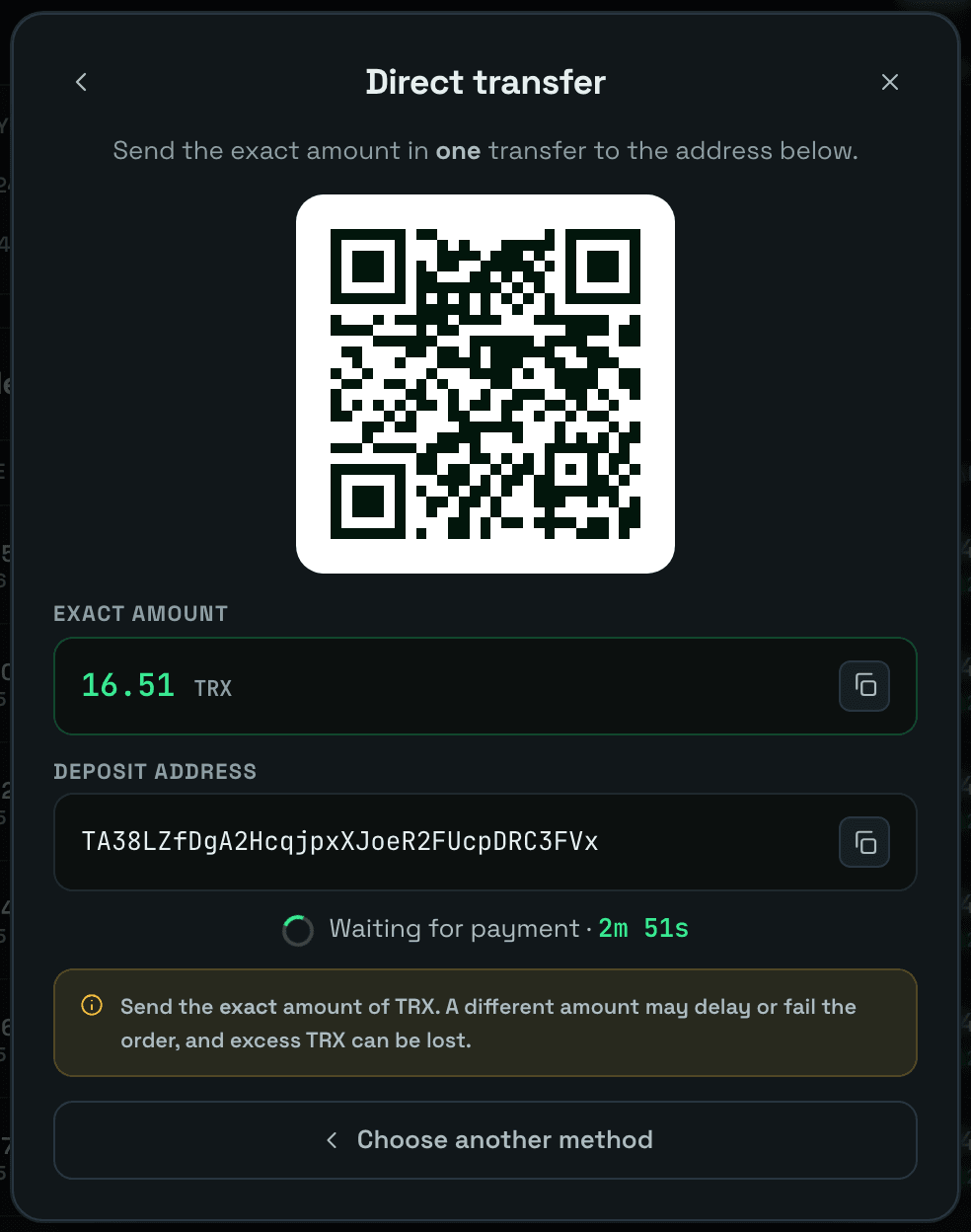
Click the **DIRECTLY TRX TRANSFER** option
The system will display:
* A **TRX payment address**
* The **exact amount of TRX** required
* A **countdown timer** (usually **3 minutes**)
*(The image above shows a sample order. Please do not use it for top-ups or real transactions.)*
## Step 5 — Make the payment
Send the required TRX **within the time limit** shown on the countdown timer.
{% hint style="warning" %}
Pay the **exact** amount of TRX. Otherwise, the order will not be accepted.
{% endhint %}
## Step 6 — Confirm the transaction
After you make the payment, the system automatically verifies the transaction and fulfills your order.
## Next steps
* [Order Types](/concepts/order-types.md) — compare Pending with the other buying methods.
* [Energy & Bandwidth](/concepts/energy-and-bandwidth.md) — understand what you're buying and how much to buy.