> For the complete documentation index, see [llms.txt](https://docs.tronsave.io/llms.txt). Markdown versions of documentation pages are available by appending `.md` to page URLs; this page is available as [Markdown](https://docs.tronsave.io/guides/sell/permission.md).
# Permission
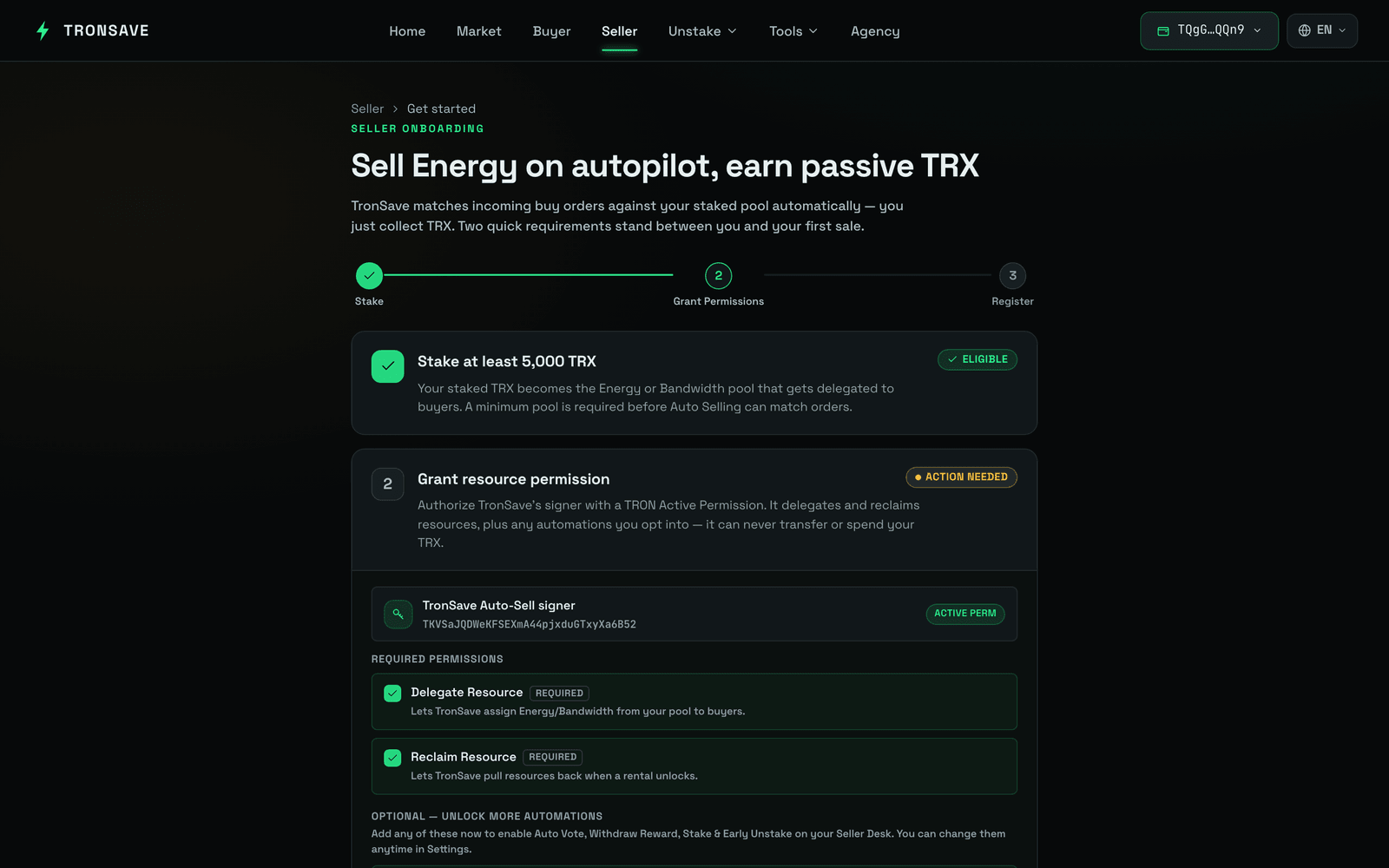
Grant TronSave the permissions it needs to delegate resources and earn as a Provider — auto setup in-app, or manual setup in TronScan/TronLink.
As a **Provider**, you stake TRX, receive [Energy or Bandwidth](/concepts/energy-and-bandwidth.md), and let TronSave delegate that resource to buyers so you earn up to **25% APY**. Becoming a Provider requires staking at least **5,000 TRX**.
👉 [**Sell TRON energy and earn APY on TronSave**](https://tronsave.io/earn) — once permission is granted, your staked TRX starts earning from filled orders.
For TronSave to manage delegation, staking, voting, and reward withdrawal on your behalf, you must grant it an **active permission** on your account using TRON multi-signature. You can do this automatically inside TronSave, or manually in TronScan / TronLink.
{% hint style="info" %}
TronSave only ever receives an **active permission** (not owner permission). It can act on the specific operations you authorize below — it cannot transfer ownership of your account.
{% endhint %}
## 1. Auto permission (in TronSave)
The fastest path. TronSave builds the permission transaction for you.
1. Open the **Seller** tab at [tronsave.io/dashboard/seller](https://tronsave.io/dashboard/seller) and click **Login TRONSAVE**.
2. Choose **Settings**, then click **Register**.
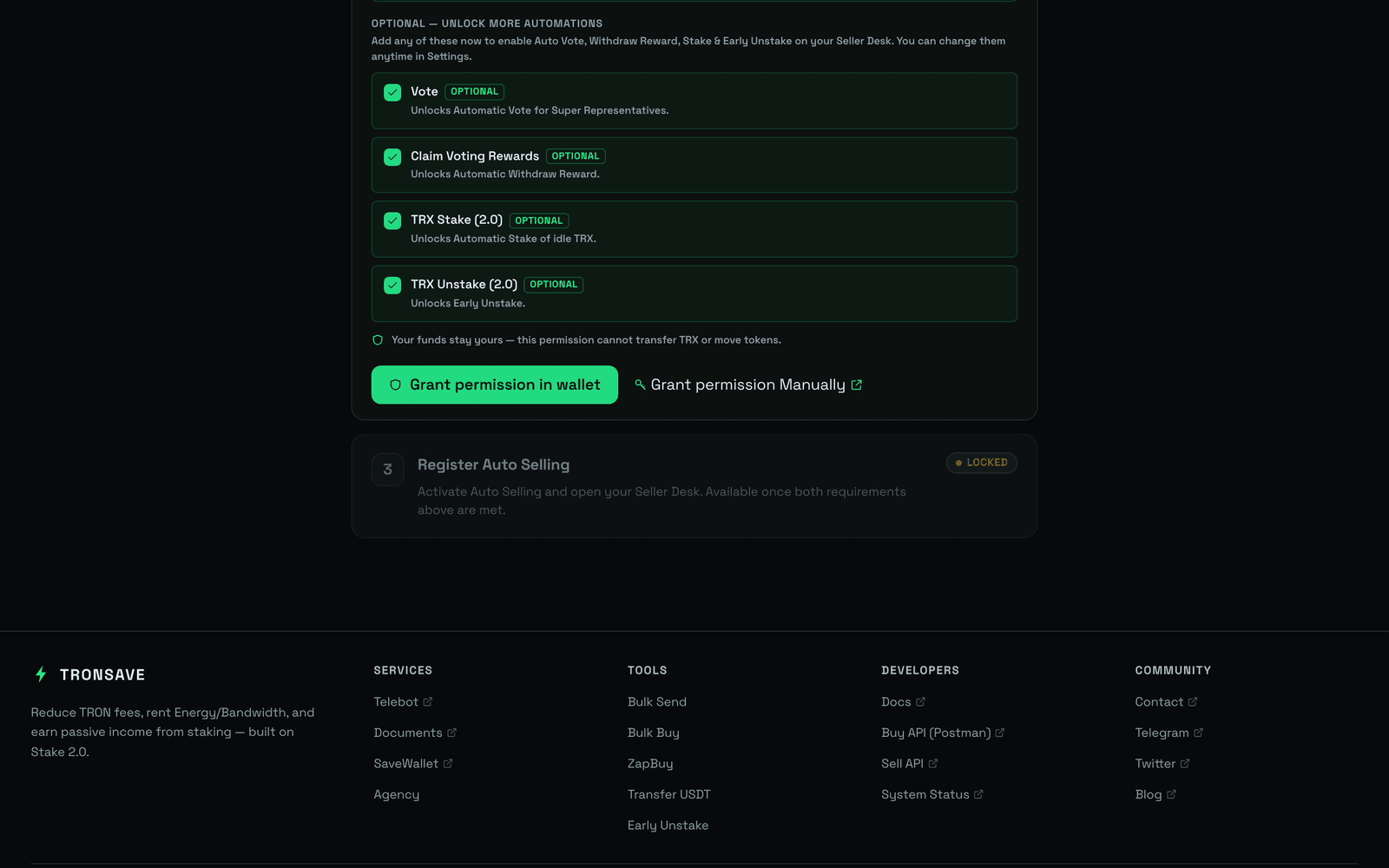
3. Select the permissions for the pool according to your preferences, then click **Grant Permission in wallet**.
## 2. Manual permission (in TronScan / TronLink)
If you prefer to configure the active permission yourself, add the following operations and assign them to the TronSave address.
### Operations to grant
* *Resources Delegate*
* *Resource Reclaim*
* *TRX Stake 2.0*
* *TRX Unstake 2.0*
* *Vote*
* *Reward Withdraw*
### TronSave address
Add this address to the **Keys** box of the new active permission:
```
TXUwRhntqX3kyALhtpC74JP8Nt6m2VMiYC
```
{% tabs %}
{% tab title="PC (TronScan)" %}
1. Open .
2. Connect your wallet.
3. Click **Edit Permission** in the **Owner Access** section.
4. In the **Active Permission** section, click **+ Add active permission**.
5. In the **Add Active Permission** pop‑up, under **Permission Name**, enter anything (e.g. `Tronsave`). Click the **+ Add** action button and select the six [operations listed above](#operations-to-grant).
6. Click **Save**. In the **Threshold** box, enter `1`. In the **Weight** box, enter `1`, and put the TronSave address `TXUwRhntqX3kyALhtpC74JP8Nt6m2VMiYC` in the **Keys** box.
7. Click **Save**. The **Add active permission** pop‑up closes.
8. Click **Save** in the **Owner Permission** section to complete the multi‑sig process.
{% endtab %}
{% tab title="Mobile (TronLink)" %}
1. Log in to your TronLink app.
2. Tap **Me** in the bottom‑right corner.
3. Tap **Public Account Management**, then **Permission**.
4. Tap **Add Permissions**.
5. Under **Permission Name**, enter anything (e.g. `Tronsave`).
6. In the **Operations** section, tap the pen symbol and select the six [operations listed above](#operations-to-grant).
7. Tap **Confirm**. In the **Threshold** box, enter `1`. In the **Weight** box, enter `1`, and put the TronSave address `TXUwRhntqX3kyALhtpC74JP8Nt6m2VMiYC` in the **Keys** box.
8. Tap **Confirm**.
 
{% endtab %}
{% endtabs %}
## Next steps
* [Sell / Provider guide](/guides/sell.md) · [Staking 2.0](/concepts/staking-2.0.md) · [Pricing & APY](/concepts/pricing-and-apy.md)