> For the complete documentation index, see [llms.txt](https://docs.tronsave.io/llms.txt). Markdown versions of documentation pages are available by appending `.md` to page URLs; this page is available as [Markdown](https://docs.tronsave.io/guides/tools/bulk-send-token.md).

# Bulk Send Token

**SaveSender** sends tokens to a large number of recipients efficiently and cost-effectively. It is built for the TRON network and integrates Energy and Bandwidth so you pay far less in TRX fees than a plain on-chain transfer.

## What you get

* **Completely free to use** — no platform fees for sending tokens.
* **Built for TRON** — optimized for TRX and TRC20 tokens.
* **Up to 92% fee savings** — through integrated Energy and Bandwidth.
* **CSV upload** — prepare a list of recipients and amounts.
* **Fast** — send to hundreds of addresses in a few minutes.

## How to send TRC20 tokens in bulk

The flow below covers a TRC20 airdrop (it works for multisend too).

### Step 1: Open the tool

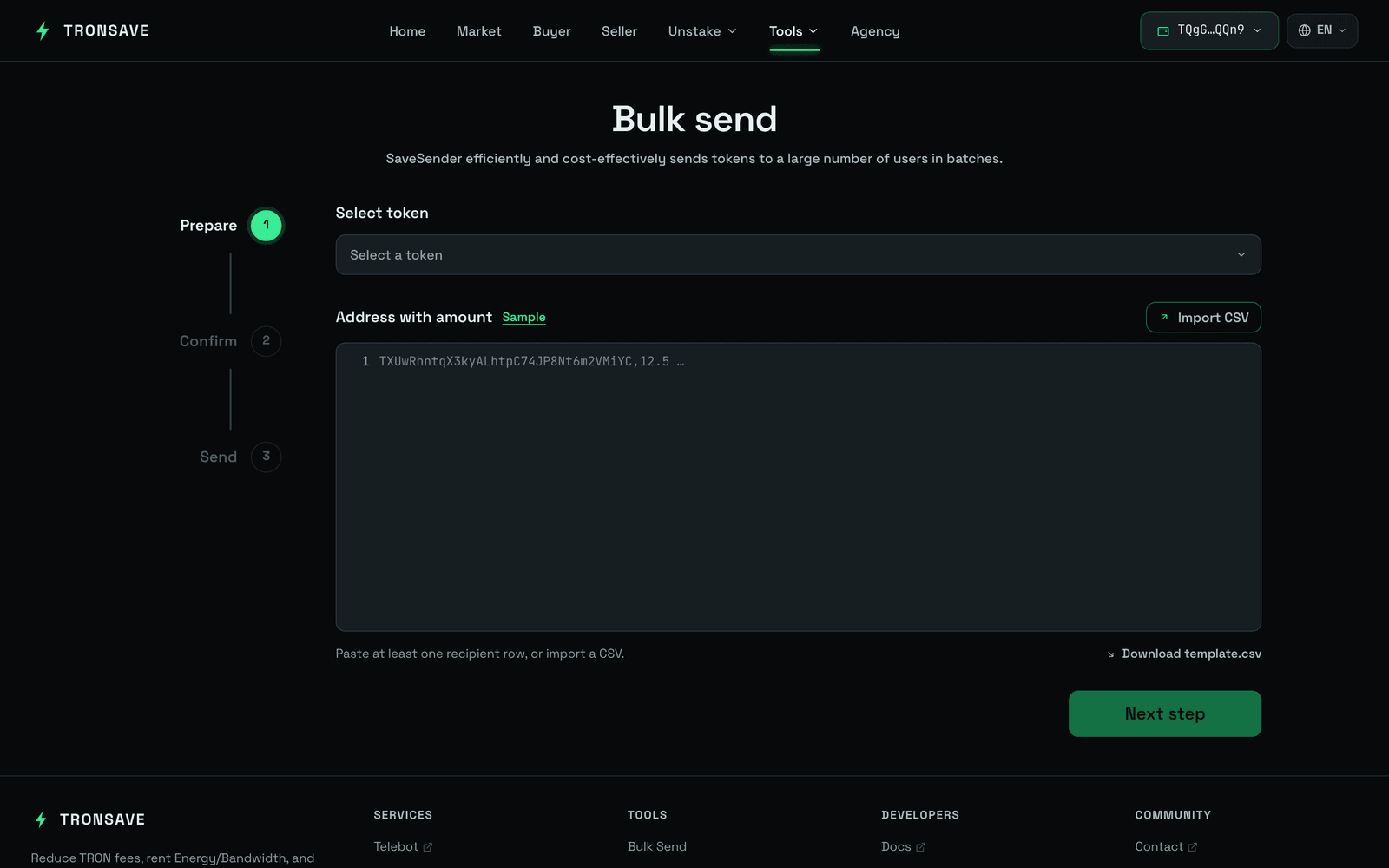
Go to [tronsave.io](https://tronsave.io/), open the **Tools** menu, and click [**Bulk Send Token**](https://tronsave.io/tools/bulk-send).

<figure><img src="/files/paRCZSZ72TM0oyeBGWXD" alt="Tools Bulk Send"><figcaption></figcaption></figure>

### Step 2: Prepare your CSV

Create a CSV listing each recipient's wallet address and token amount, for example `TAbc123xyz, 100.5`. Double-check the addresses.

{% hint style="info" %}

* Each line must have an **address** and an **amount** separated by a comma, e.g. `TAbc123xyz, 100.5`.
* Duplicate addresses are not allowed.
  {% endhint %}

### Step 3: Connect your wallet

Connect your wallet and make sure it holds enough TRX for fees and enough of the token you intend to send.

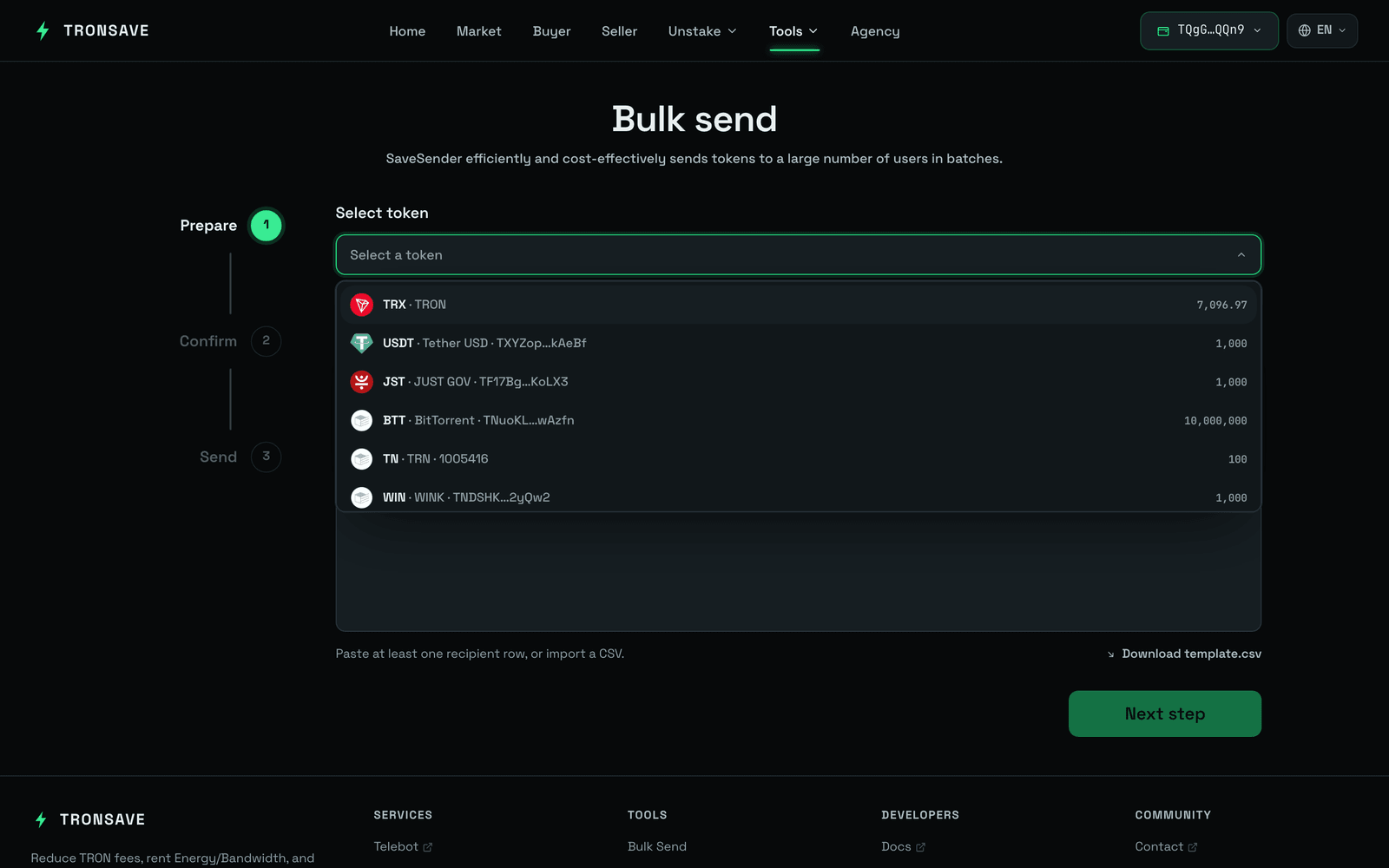
### Step 4: Select token and upload data

1. Choose the token.
2. Upload your CSV.
3. Verify the preview.

<figure><img src="/files/pEX6asfINshNYqFjJ6Wj" alt="Tools Bulk Send Token"><figcaption></figcaption></figure>

### Step 5: Approve the token (TRC20)

For TRC20 tokens you must approve the token before transferring it. The system automatically estimates the Energy required for the approval transaction.

Buy Energy first, then run the **Approve** step.

<figure><img src="https://1055070949-files.gitbook.io/~/files/v0/b/gitbook-x-prod.appspot.com/o/spaces%2Fh0rlDWTk05Qu3lvB5Gve%2Fuploads%2Fh8NTj1m75HHotVNKOHnn%2Fimage.png?alt=media&#x26;token=9c05694b-b981-4213-b793-85ad582f4bc2" alt=""><figcaption></figcaption></figure>

<figure><img src="https://1055070949-files.gitbook.io/~/files/v0/b/gitbook-x-prod.appspot.com/o/spaces%2Fh0rlDWTk05Qu3lvB5Gve%2Fuploads%2FiaEdlwcSjGNAoYxA24jc%2Fimage.png?alt=media&#x26;token=1de42071-a627-4ba9-b22c-88b4047e944a" alt=""><figcaption></figcaption></figure>

### Step 6: Send the token

Once the token is approved, the system moves to the **Send** step automatically.

TronSave estimates the Energy your transaction requires. To save fees, click **Buy Energy**.

* Wait 15–30 seconds for the Energy to be delegated to your wallet.
* Then confirm to proceed with the bulk send.

{% hint style="success" %}
Buying Energy here reduces TRX gas costs and keeps delivery smooth.
{% endhint %}

<figure><img src="https://1055070949-files.gitbook.io/~/files/v0/b/gitbook-x-prod.appspot.com/o/spaces%2Fh0rlDWTk05Qu3lvB5Gve%2Fuploads%2Fw0GNCVrptQXHPrMRiW3y%2Fimage.png?alt=media&#x26;token=a1cdf5a4-ae98-4727-8987-843e01e14e92" alt=""><figcaption></figcaption></figure>

<figure><img src="https://1055070949-files.gitbook.io/~/files/v0/b/gitbook-x-prod.appspot.com/o/spaces%2Fh0rlDWTk05Qu3lvB5Gve%2Fuploads%2FdUJNiJ9DrzzsNloEl6A5%2Fimage.png?alt=media&#x26;token=bbf5ace1-2edf-4780-a0af-c002b795beb8" alt=""><figcaption></figcaption></figure>

### Step 7: Verify on TRONSCAN

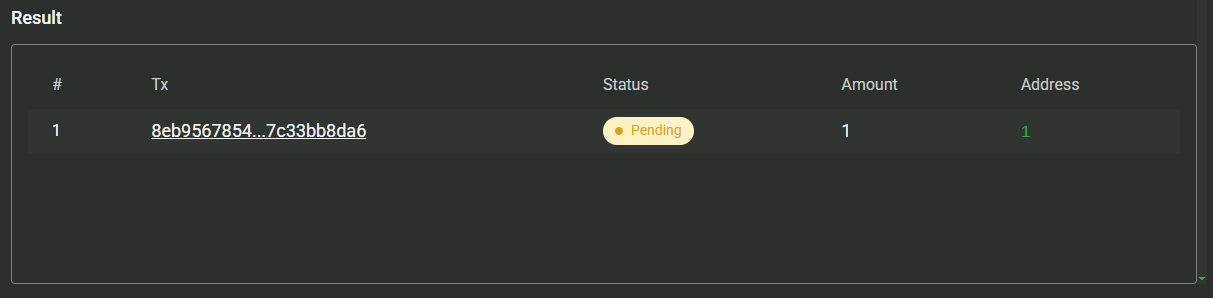
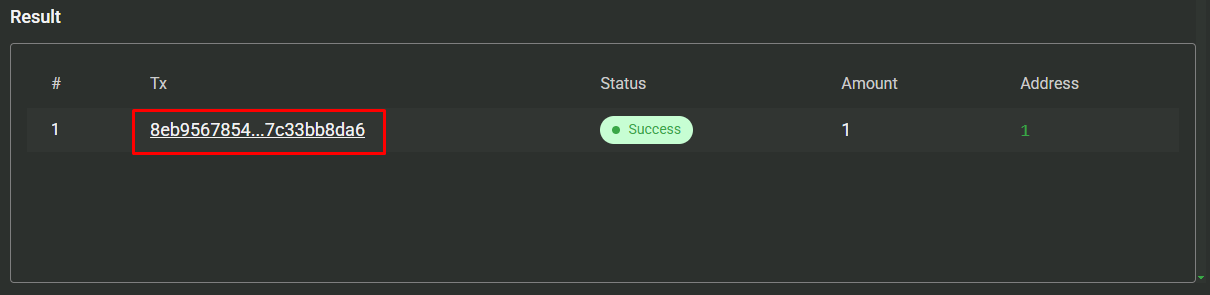
Check [TRONSCAN](https://tronscan.org/) to confirm the transfers succeeded.

<figure><img src="https://1055070949-files.gitbook.io/~/files/v0/b/gitbook-x-prod.appspot.com/o/spaces%2Fh0rlDWTk05Qu3lvB5Gve%2Fuploads%2FEF51LAO6FoFMLzNg7MTx%2Fimage.png?alt=media&#x26;token=76e8df2e-875c-4548-90fc-2323db626453" alt=""><figcaption></figcaption></figure>

<figure><img src="https://1055070949-files.gitbook.io/~/files/v0/b/gitbook-x-prod.appspot.com/o/spaces%2Fh0rlDWTk05Qu3lvB5Gve%2Fuploads%2FnTNHCoHIJaJajCq3F28h%2Fimage.png?alt=media&#x26;token=50b8b5de-24d3-4eef-a020-5f1177647e96" alt=""><figcaption></figcaption></figure>

## Next steps

* [Buy Energy & Bandwidth](/guides/buy.md) — the resources that power your bulk send.
* [Energy and Bandwidth](/concepts/energy-and-bandwidth.md) — why these resources lower transfer fees.
---

# Agent Instructions
This documentation is published with GitBook. GitBook is the documentation platform designed so that both humans and AI agents can read, navigate, and reason over technical content effectively. Learn more at gitbook.com.

## Querying This Documentation
If you need additional information that is not directly available in this page, you can query the documentation dynamically by asking a question.

Perform an HTTP GET request on the current page URL with the `ask` query parameter, and the optional `goal` query parameter:

```
GET https://docs.tronsave.io/guides/tools/bulk-send-token.md?ask=<question>&goal=<endgoal>
```

`ask` is the immediate question: it should be specific, self-contained, and written in natural language.
`goal` is optional and describes the broader end goal you are ultimately trying to accomplish on behalf of the user. GitBook uses it to tailor the answer towards what is most useful for that goal.

The response will contain a direct answer to the question and relevant excerpts and sources from the documentation.

Use this mechanism when the answer is not explicitly present in the current page, you need clarification or additional context, or you want to retrieve related documentation sections.